 TerminalLynx
Pair a device and sync
Add your laptop or a second desktop, and keep your connections in sync between them with no cloud account.
Pairing gives a second computer your identity. From then on the two keep each other up to date directly, encrypted end to end, with no account and no server in between. It takes about a minute.
Before you start
- Install TerminalLynx on both computers.
- Decide which one has your data: you'll show a code there. The other one is the new device, and you'll enter the code on it.
- The two need to reach each other: on the same network, or over a VPN like Tailscale, ZeroTier or WireGuard. On the same network, they find each other on their own.
- The Free plan covers 3 devices. Pro and Team have no limit; see pricing.
1. Turn on peer networking, on both devices
Peer networking is off until you turn it on. In the sidebar, under Manage, open Network & peers… and choose Turn on. Do the same on the other computer.
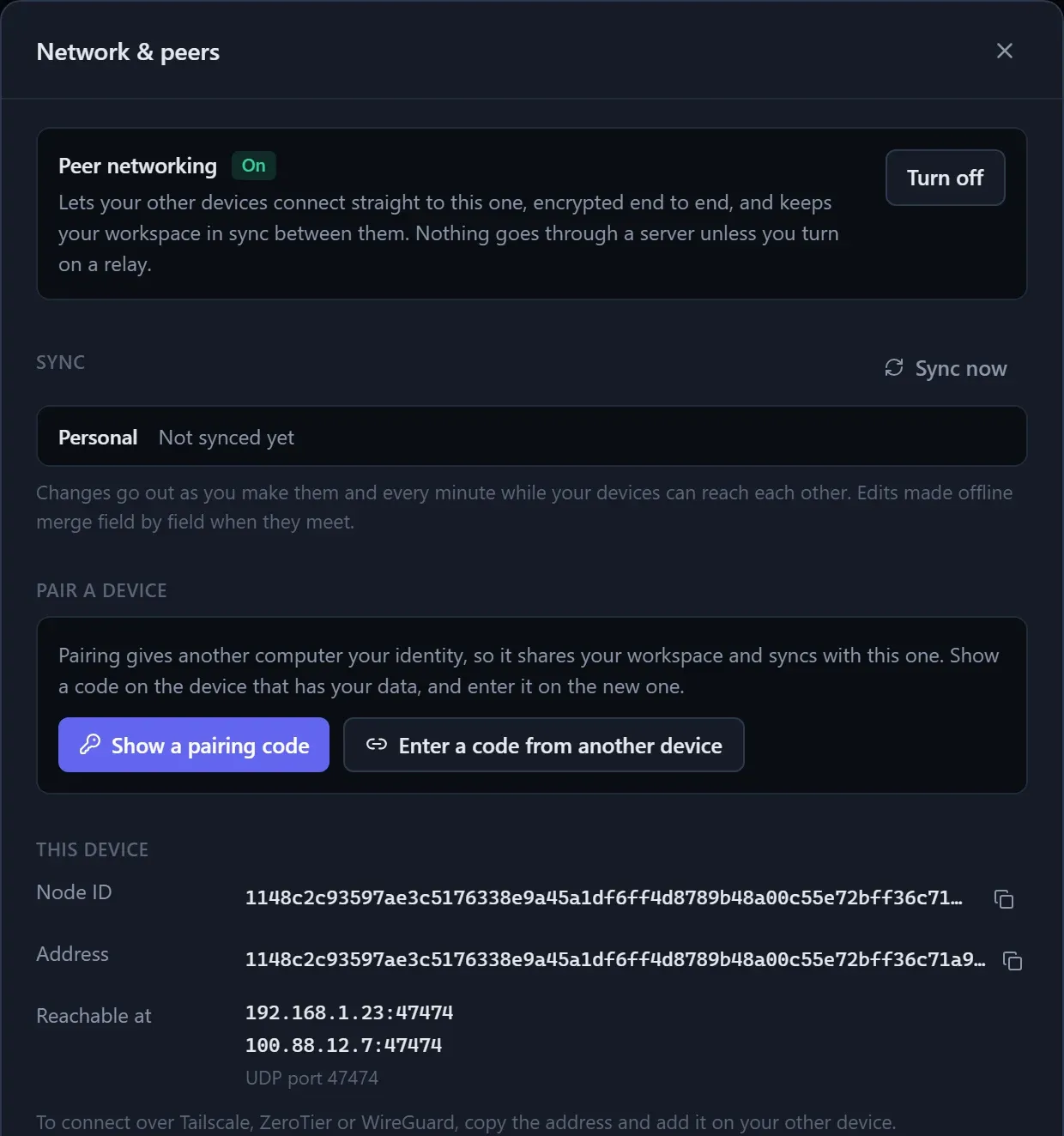
If your firewall asks, allow TerminalLynx on private networks. It listens on UDP port 47474 unless you change it under Settings in the same dialog.
2. Show a pairing code on the device with your data
Under Pair a device, choose Show a pairing code.
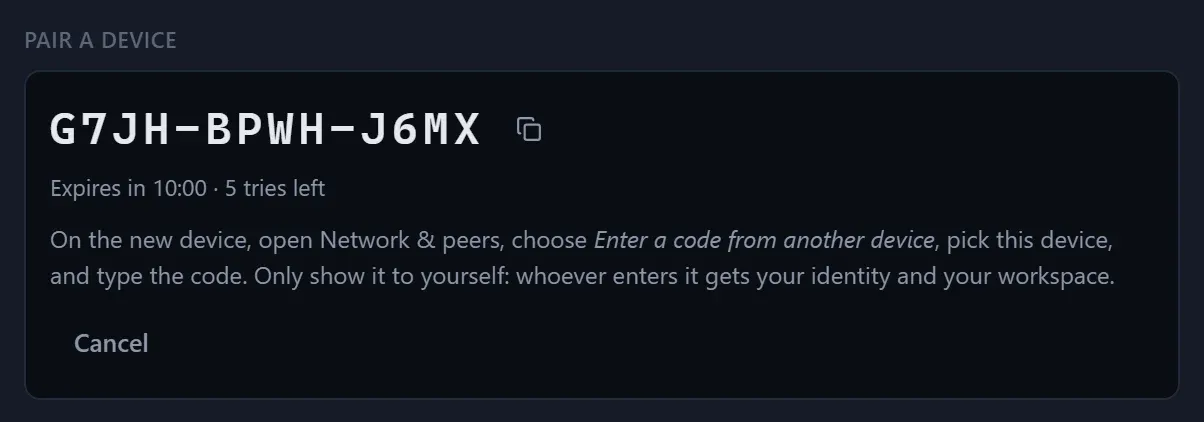
3. Enter the code on the new device
On the new device, in Network & peers:
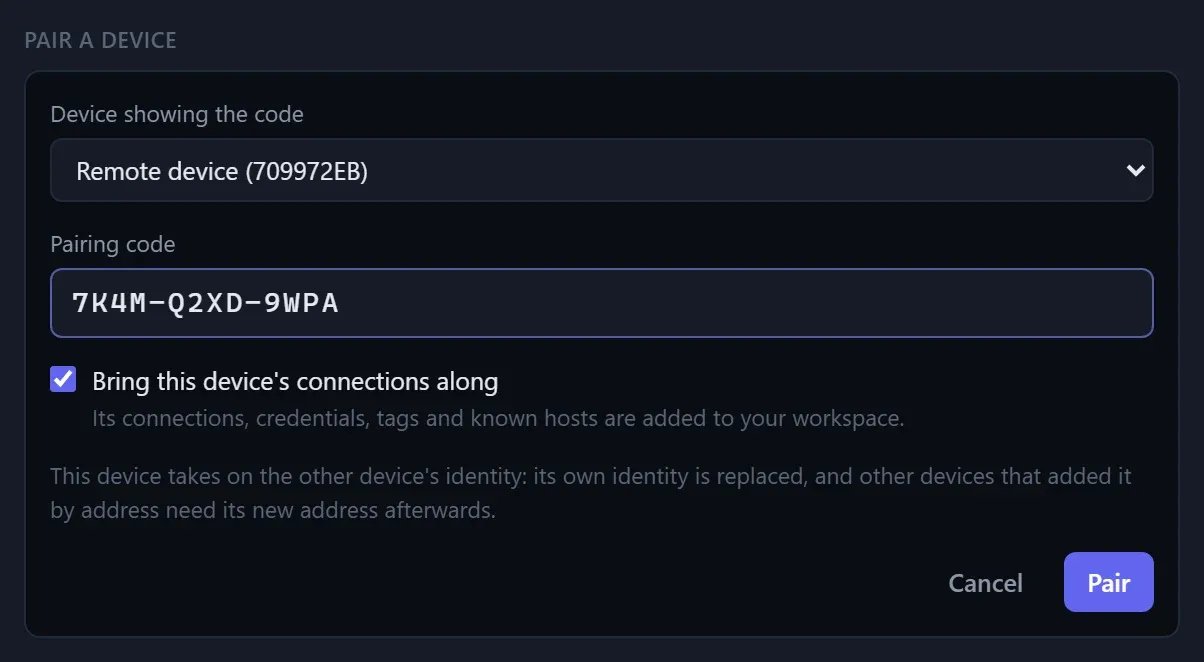
- Under Pair a device, choose Enter a code from another device.
- Under Device showing the code, pick the computer from step 2. If it's on the same network, it's marked on this network. If it isn't listed, add it by address first.
- Type the code. Dashes and capital letters are optional.
- Decide about Bring this device's connections along. Leave it on to add the new device's connections, credentials, tags and known hosts to your workspace. Turn it off to delete them.
- If the new device has a master password, enter it. It keeps protecting the identity on that device.
- Choose Pair.
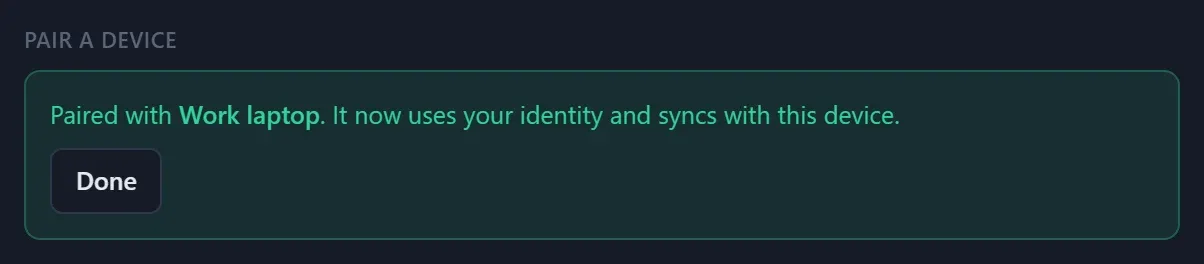
The device that showed the code confirms the pairing, and the two sync right away.
Devices on different networks
Devices find each other on their own only on the same local network. Some networks, like guest Wi-Fi, block this too. Otherwise, connect them by address. A mesh VPN like Tailscale works well, because each computer keeps the same address wherever it is.
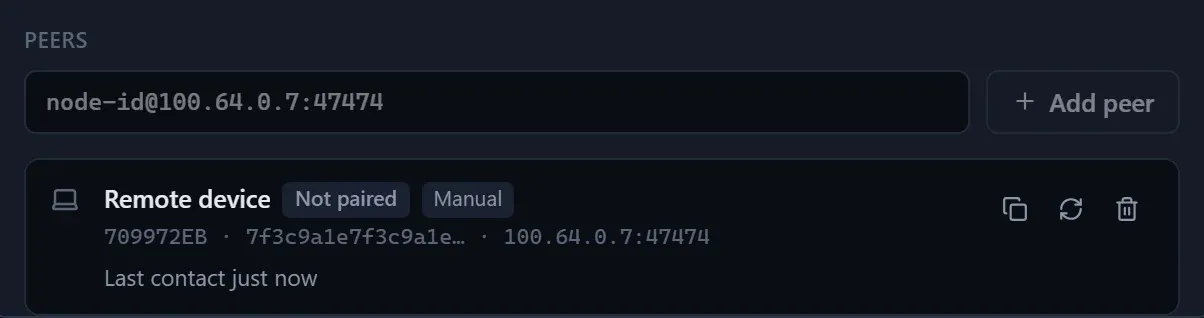
10.1.20.x and a laptop on Wi-Fi at 10.1.40.x, won't find each other on their own, because discovery doesn't cross from one subnet to another. They can usually still reach each other, though, so add one by address as below.- On the device with your data, find This device in Network & peers and copy its Address. It looks like
[email protected]:47474: a long node ID, then the addresses it can be reached at. - On the new device, paste it under Peers and choose Add peer. It's listed with the Manual badge.
- Carry on with step 3, picking that device.
Staying in sync
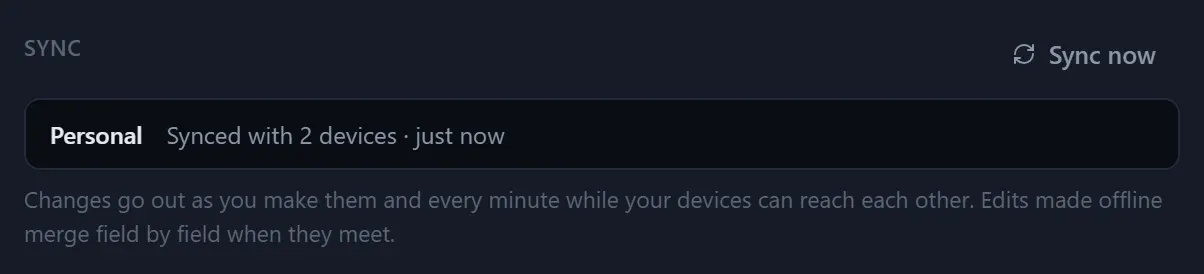
There's nothing more to do. Paired devices sync when they start, every minute while they can reach each other, and moments after you change something. To sync right away, choose Sync now.
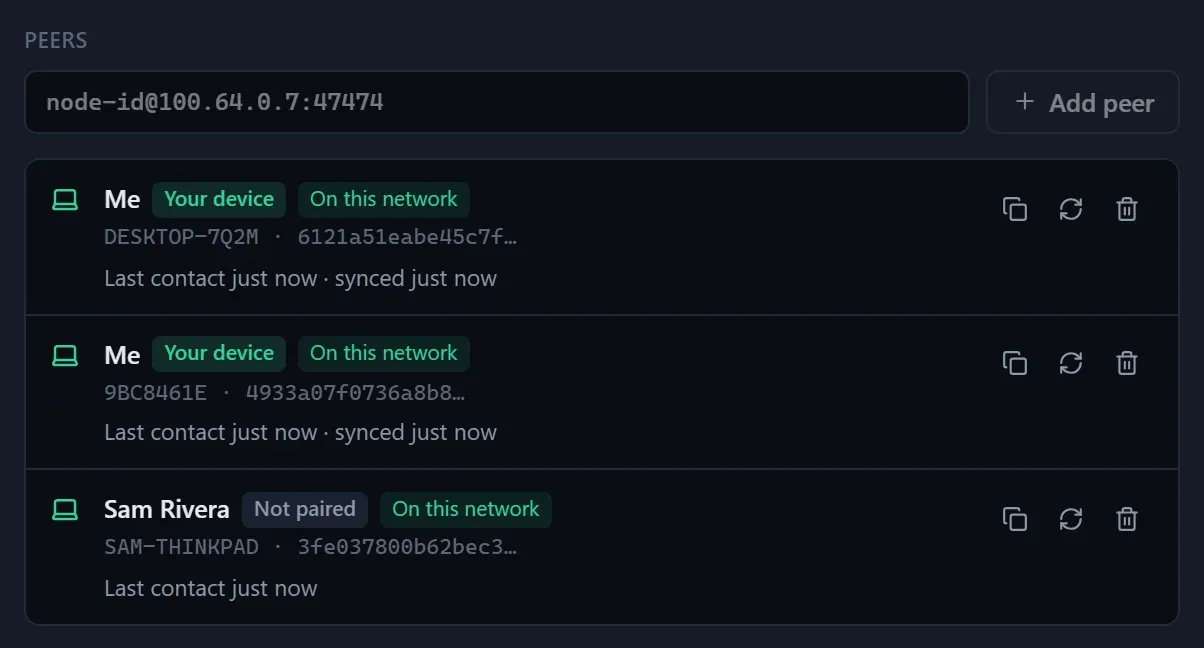
Each paired device is listed under Peers as Your device, with when it was last synced.
You can keep working offline. Edits merge field by field when the devices meet again: change a server's port on your laptop and its name on your desktop, and both changes survive.
What the peer badges mean
| Your device | Paired with you: it has your identity and syncs your workspace. |
| Known user | A teammate this device already knows. |
| Not paired | Someone else's device, or one of yours that isn't paired yet. It can't see any of your data. The device you're about to pair shows this until you finish. |
| Key mismatch | It claims to be a user this device knows, but with a different key. TerminalLynx refused it; see Troubleshooting. |
On this network means it was found on your local network, and Manual means you added it by address.
Troubleshooting
The other device isn't in the list
Check that peer networking is on there, and that Find devices on this network is on in both devices' Settings. Then give it a few seconds. If it still doesn't appear, or the two are on different subnets, add it by address.
"The device didn't answer (timed out)"
The address is wrong or out of date, a firewall is blocking UDP port 47474, or your VPN isn't connected on one of the devices. Fix that, then choose the refresh button on the peer to try again.
"That code doesn't match"
Check the code, and that you picked the device showing it. After 5 wrong tries or 10 minutes, the code stops working. Choose New code on the device with your data.
"The Free plan covers 3 devices"
Forget a device you no longer use in Manage → License & plan, or upgrade for unlimited devices.
A peer shows Key mismatch
It claims to be someone this device knows, but with a different key, so TerminalLynx refused it and shared nothing with it. Don't pair with a device you don't recognize.
Still stuck?
Contact support, with the message you see and what each device's Network & peers shows.